7 Sequencer
Lunar Modulator’s sequencer records and plays patterns of notes and parameter changes. Its design follows Movy, the sequencer megadake wrote for the Ableton Move: tracks of clips, sixteen steps to a bar, parameter locks on any step, conditions and probability, swing, non-destructive quantise, scenes and a song mode, and Capture, which keeps what you just played even when you were not recording.
The sequencer runs in the browser simulator, on the panel, and in the desktop tools, where it is tested note for note against Movy’s own code. On the FM-1 it is planned, with the same controls. In the simulator you can enter steps, edit and lock them, record, step record and capture, and work with eight tracks, their mute, their routing to the four sounds (chapter 5) and their pages. Launching clips and scenes, songs, the loop view, copying, undo and drum tracks are in the desktop tools only so far; this chapter says so where they come up.
Reading this chapter
- In SEQ mode the black keys take on sequencer jobs, which the screen names. The keys are called here by the labels printed under them, such as OP1 and OP5.
- SEL is the sequencer’s SHIFT everywhere but in FX mode.
- Controls drawn with a dashed outline, such as LOOP and COPY, are functions still to be given a key. They are not in the simulator yet; the index of controls lists them apart.
- Steps, tracks, slots and scenes are numbered from 1 here, as the screen shows them. Scripts for the desktop tools count from 0 (Scripts on the desktop).
| Item | Value | Notes |
|---|---|---|
| Clock resolution | 96 ticks per quarter note | MIDI clock out is 24 per quarter note |
| Step | 24 ticks, a sixteenth note | 16 steps to a 4/4 bar |
| Clip length | 1 – 256 steps | up to 16 bars |
| Tracks | up to 16 | the FM-1 build is planned with 4 to 8 |
| Clip slots | 8 per track | a scene is one slot on every track |
| Parameter-lock lanes | 8 per track | each lane drives one parameter |
| Lock values | 0 – 127 | scaled onto the parameter’s own range |
| Notes on one step | up to 12 at once | a chord |
| Tempo | 20 – 300 BPM | in steps of 0.01 BPM |
7.1 How a pattern is organised
Status:In the simulatorOn the desktopPlanned for the device
Everything the sequencer holds is a set: the tempo, the swing, a song, and every track with its clips.
- A track plays one sound: one of the four sounds, or an instrument on a MIDI channel. The simulator has eight tracks, as the FM-1 build will.
- Each track has eight clip slots. A clip is a loop of 1 to 256 steps, up to sixteen bars, holding notes, parameter locks and step conditions. One clip per track plays at a time.
- A step is a sixteenth note. Sixteen steps make a bar of 4/4.
- A scene is one slot number across every track: launching scene 3 launches slot 3 on each track. A song is a list of scenes played in order.
| Example set | Slot 1 | Slot 2 | Slot 3 | Slot 4 | Slot 5 | Slot 6 | Slot 7 | Slot 8 |
|---|---|---|---|---|---|---|---|---|
| Track 1 | plays | clip | clip | |||||
| Track 2 | plays | clip | ||||||
| Track 3 | clip | plays | clip | |||||
| Track 4 | clip |
In this set, tracks 1 and 2 play their first clip, track 3 its second, and track 4 is silent. Launching scene 3 would start slot 3 on tracks 1, 3 and 4 at the next bar, and stop track 2, which has nothing in slot 3.
In the simulator each track plays its first slot; launching other slots and scenes is in the desktop tools so far (Clips).
The demo pattern
When the simulator starts, track 1 holds a one-bar pattern in C minor at 120 BPM. Press PLAY/STOP, or Space on the computer keyboard, to hear it; tap its steps away to start your own.
7.1.1 SEQ mode and the keys
The keys have two jobs:
- Outside SEQ mode (the sound’s page, FX mode, the global page) the keys play notes, as in chapter 4. The notes also go to the focused track: they are what you record, and what Capture hears.
- In SEQ mode the 16 white keys are the 16 steps of the bar shown on the screen, numbered 1 to 16 from the left, and they play nothing. Press SEQ to enter SEQ mode from any mode; HOME, FX and GLO leave it. The sequencer keeps playing in every mode.
In SEQ mode the black keys are the sequencer’s controls:
| Key | In SEQ mode |
|---|---|
| OP1 (F#3) | ◀: the previous bar. With steps held, nudges them earlier. In step recording, a step back |
| OP3 (A#3) | ▶: the next bar. With steps held, nudges them later. In step recording, a rest or a tie |
| OP2 (G#3) | LOOP: with SEL (SHIFT), the song page. Held in the session view, white keys 1 to 8 are scenes |
| OP4 (C#4) | COPY: held in the session view, copies and pastes clips |
| OP5 (D#4) | CLEAR: with steps held, clears their locks; held, a knob clears that parameter’s locks from the track. A tap deletes the clip, after a question |
| OP6 (F#4) | MUTE: a tap mutes or unmutes the track; held, white keys 1 to 8 mute and unmute tracks 1 to 8 |
| MONO (C#5), POLY (D#5) | The previous and the next track |
| PIT | Nothing yet. It is planned for UNDO |
SEL is SHIFT in every mode but FX mode, where it keeps its job of picking up an effect (chapter 6). Its light is on while you hold it. Hold it with no step held and the screen lists the shortcuts below (The Set, Clip and Track pages).
On a computer keyboard, 1 to 8 and C V B N M , . / are steps 1 to 16 in SEQ mode, Shift is SHIFT there, and Space is PLAY/STOP in every mode, unless a button on the page has the focus.
7.1.2 What the screen shows
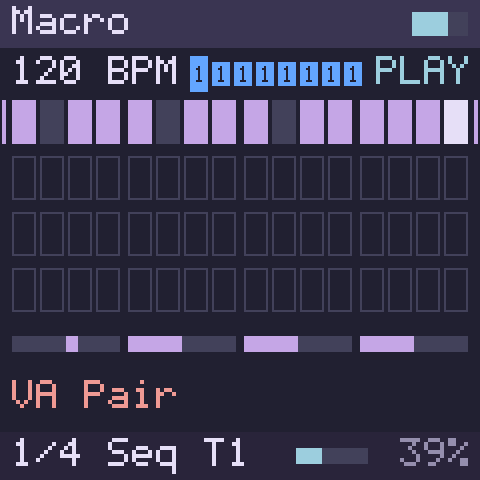
In SEQ mode the screen shows the focused track:
- The status line: the tempo (120 BPM; decimals only when it has them, such as 120.5 BPM), the eight tracks and PLAY, STOP, REC (gold during a count-in, or while a take waits for its bar) or STEP (step recording). Each track is a small tile with the number of the sound it plays (1 to 4), in that sound’s colour; M on grey is MIDI out. The focused track’s tile is taller than the others. A muted track’s tile goes dark and leaves its number in the sound’s colour (the focused one keeps a bar above and below it).
- The grid: four bars around the bar on the keys, 16 steps a row. A step with notes is filled, a step outside the loop is outlined (its notes as a dim bar), the playhead is inverted, a step with a condition, probability or invert has a tick under it, a step with a lock a gold dot in its corner, and held steps are framed in gold. A mark at both ends shows the bar on the keys. A muted track’s notes are dim. With SHIFT held, the shortcuts take the grid’s place.
- The knob strip: four bars for KNOB1 to KNOB4 on the sound’s current page; while you turn a knob, the other three dim.
- The hint line: the knob you turned, its name and value, for two seconds; the bar the keys moved to; in step recording, the step under the record head; otherwise the sound’s model, in rose like every page’s heading.
- The bottom bar: the page, the mode and the track, such as 1/3 Seq T1, and the memory meter (chapter 6).
7.1.3 The key lights
| Key light in SEQ mode | Meaning |
|---|---|
| On | The step has notes |
| Off | The step is empty, or outside the loop |
| Inverted: off on a step with notes, on on an empty one | The playhead is on this step |
| Slow blink | The step lies under the note of the step you are holding |
| Fast blink | The record head of step recording |
| OP1, OP3 on | There is a bar to go to, or held steps to nudge |
| OP5 on | The track has a lock lane |
| OP6 on | No step is held: a tap mutes |
| MONO, POLY on | There is a track before or after this one |
Held, OP6 lights white keys 1 to 8 for the tracks that sound; held, SEQ lights the focused track’s key. Outside SEQ mode the sequencer’s notes light no key.
7.2 Steps and notes
Status:In the simulatorOn the desktopPlanned for the device
7.2.1 To put notes on a step
- In SEQ mode, show the bar with OP1 and OP3.
- Tap the step’s white key. The key lights.
The step gets the last chord you played on the keys outside SEQ mode, or at MIDI IN, each note at the velocity you played it; if you have played nothing yet, C4 at velocity 100. A tap places up to twelve notes, each one step long.
A step changes when you release its key, so a key you hold to edit the step (below) never switches it on or off. Tap a step that has notes to remove them; its parameter locks stay.
The first note in an empty clip makes a one-bar clip. OP3 shows one empty bar past the end of the pattern; a note there lengthens the clip to the end of that bar.
Editing a clip that is not playing
If you add notes to a clip that is not playing while the sequencer runs, that clip starts playing on its track at the next bar.
7.2.2 To add a pitch to a step
- Hold the step’s white key.
- Hold SEL (SHIFT). While it is down, the white keys are pitches in the current octave.
- Press a white key to add its pitch to every step you hold.
A note at MIDI IN adds its pitch to the held steps too; that is how sharps go in. A pitch added this way takes the length of the notes already on the step. To remove pitches, clear the step and enter it again.
With a drum kit as the sound (Sophie or Drums), a white key adds the pad it plays, as it does in step recording.
7.2.3 The step pages
Hold a step for about 300 ms and the screen opens the step pages, with the step’s own settings on the knobs. Turn SELECT to change page.
| Page | KNOB1 | KNOB2 | KNOB3 | KNOB4 |
|---|---|---|---|---|
| Step 1/2 | Velocity | Length | Prob | Condition |
| Step 2/2 | Invert | Nudge (shown) | Note (shown) |
| Setting | What it sets | Range |
|---|---|---|
| Velocity | The velocity of the step’s notes, 4 a click | 1 to 127 |
| Length | How long the step’s notes last; … when they differ | 1/32 to 16 bars, up to the end of the loop |
| Prob | The chance that the step plays | 100 % down to 10 % |
| Condition | On which passes of the clip the step plays | 36 conditions, 1:1 to 8:8 |
| Invert | Turns the condition round | Off or on |
The first line names the held step (Step 7, or Step 7 +2 with two more held), and the strip under the rows shows the bar, the held steps in gold. Holding several steps edits them all, from the first one’s values. Past Step 2/2, SELECT goes on to the sound’s own pages, where the knobs lock (Parameter locks).
Conditions and probability explains Prob, Condition and Invert.
7.2.4 To set the length of notes
- Hold the step and tap a later step: the held step’s notes now last until the end of that step. Tap it again for its start.
- Or set Length on the step page.
A note never lasts past the next note of the same pitch, nor past the end of the loop.
7.2.5 To nudge notes
Hold one or more steps and press OP1 or OP3: their notes move 2 ticks earlier or later. Hold SEL (SHIFT) as well to move them 1 tick. A tick is 1/24 of a step, and a note stays within one step of the step it belongs to. Step page 2 shows the nudge.
Nudges and quantise
Quantise pulls nudged notes back towards the grid too. At 100 % a nudge has no effect; at 0 % you hear it in full (Swing and quantise).
7.2.6 To change velocity or pitch
Hold one or more steps, then:
- turn Velocity on the step page to set the velocity of their notes;
- press OCT- or OCT+ to move every note on them a semitone down or up, or an octave with SEL (SHIFT) held.
7.2.7 Full velocity
SEL (SHIFT) and white key 10 enter every step, and play the keys, at full velocity until you press them again. A message says which.
7.2.8 To clear steps
| To clear | Do this |
|---|---|
| A step’s notes | Tap the step |
| The notes of held steps | Hold the steps and tap SEL (SHIFT) on its own |
| The locks of held steps | Hold the steps and press OP5 (CLEAR) |
| A step’s notes and locks | Hold OP5 (CLEAR) and press the step: planned |
7.3 Parameter locks
Status:In the simulatorOn the desktopPlanned for the device
A parameter lock gives one step its own value for one parameter: a brighter note on step 5, a longer decay on step 13. You lock the parameters of the sound the track plays, as chapter 5’s tables list them; locks on the effects’ parameters are planned.
7.3.1 To lock a parameter on a step
- Hold the step’s white key.
- Turn SELECT past the two step pages. The pages that follow are the sound’s own, as on the sound’s page, and the first line reads Lock step 5.
- Turn the parameter’s knob. The value is stored on that step, and shows in gold over the dim value the parameter has on other steps.
- Release the key.
You do not hear a lock while you set it on a held step; you hear it when the step plays. Locks are made with one step held: with two or more steps held, the sound’s pages change the sound itself, with no lock.
A step does not need notes to carry a lock. A lock on an empty step changes the sound under notes that are still ringing, and the value then holds until a step with notes resets it (below).
Each track has eight lock lanes, so it can lock up to eight different parameters at once. A parameter takes a lane the first time you lock it, and gives it back when its last lock on the track, in any of its clips, is cleared. A ninth parameter says 8 lanes used.
- A step with locks has a gold dot in the grid.
- On the lock pages a dot after a parameter’s bar marks a lane, filled where the held step has a lock.
- A lock goes to the sound the track plays, even when the keys play another sound; the first line then names it, such as Lock step 5 S2.
7.3.2 How a lock plays
When the playhead reaches a step, each locked parameter on the track takes:
- the step’s lock, if it has one;
- otherwise, if the step has notes, the parameter’s base value;
- otherwise, the value it already has.
A value is sent only when it changes, and a step’s locks are sent just before its notes, so each note starts with its locked sound. In this example the parameter runs from 0 to 1 and its base value is 0.40:
| Step | 1 | 2 | 3 | 4 | 5 | 6 | 7 | 8 |
|---|---|---|---|---|---|---|---|---|
| Notes | yes | yes | yes | yes | ||||
| Lock | 0.80 | 0.20 | ||||||
| Value | 0.40 | 0.40 | 0.80 | 0.80 | 0.40 | 0.20 | 0.40 | 0.40 |
Locks keep running
Locks follow the steps even when the track is muted or a condition keeps a step’s notes silent, so the sound is ready when the notes come back.
7.3.3 Base values
Each locked parameter has a base value, the value that steps with notes but no lock return to: the knob’s value. Turning the knob with no step held changes the parameter as usual, in the 128 steps a lock uses, and every lane on it follows, so what you hear between locks, and after a stop, is what the knob shows.
7.3.4 Recording knob moves
While the track records, turning a knob writes its moves into the steps as they play, and you hear them as you turn (Recording).
7.3.5 When the sequencer stops
When you stop the sequencer, every locked parameter that was left at a locked value goes back to its base value, after the notes have ended. The same happens to a track that stops at the bar, and to a parameter when you clear its last lock. A sound never stays at a value that no step asked for.
7.3.6 To clear locks
| To clear | Do this |
|---|---|
| One lock | Hold the step, hold SEL (SHIFT), and turn the parameter’s knob on its lock page |
| Every lock on the held steps | Hold the steps and press OP5 (CLEAR) |
| Every lock of one parameter on the track | Hold OP5 (CLEAR) and turn the parameter’s knob one click |
7.3.7 Values and list parameters
- A lock stores one of 128 values spread evenly across the parameter’s range, and the screen shows it in the parameter’s own units. On a frequency or a time (a cutoff, a delay, a release: the effects have them, and locks on the effects are planned), they are spread evenly in ratio, as the knob turns, so each step is the same musical interval: from 20 Hz to 18 kHz, a little under a semitone a step.
- On a list parameter, such as Model, Shape, Patch or Pad, the 128 values are divided evenly between the entries.
- Parameters that disturb every sounding note when they change refuse locks: Macro’s and Macro Heavy’s Model, which cut the notes, and Shapes’ Shape, which strikes them again. Their lock pages say no lock, and a turn says the parameter cannot be locked. A lock on Six-Op FM’s Patch or on Sophie’s Model changes the sound of that step’s notes only, as those engines read it when a note starts.
- Continuous parameters glide to a locked value over a few milliseconds, so a lock under a ringing note does not click.
- The sound engine itself cannot be locked. To change engine on a step, put the notes on a track that plays another sound.
7.4 Conditions and probability
Status:In the simulatorOn the desktopPlanned for the device
A step can play only on some passes of its clip, or only by chance. Set both on the step page.
7.4.1 Conditions
A condition A:B plays the step on the A-th pass of every B passes of its clip. Passes are counted for each track from 1, starting when its clip starts: when you press Play, or when the clip is launched.
| Condition | Plays on passes |
|---|---|
| 1:1 | Every pass (the default) |
| 1:2 | 1, 3, 5, 7 … |
| 2:2 | 2, 4, 6, 8 … |
| 1:4 | 1, 5, 9, 13 … |
| 3:4 | 3, 7, 11, 15 … |
| 4:4 | 4, 8, 12, 16 … |
Condition on the step page offers the 36 conditions with A and B up to 8 and A no greater than B, from 1:1 to 8:8. Scripts accept A and B up to 64.
7.4.2 Probability
Prob gives a step a chance to play each time it comes round, from 100 % (always) down to 10 %. Scripts accept any value from 0 to 100 %.
The chance comes from a fixed random sequence that starts afresh when the sequencer starts up, so the desktop tools render the same script the same way every time.
7.4.3 Invert
Invert turns a condition round: the step plays on exactly the passes the condition would skip. 1:4 inverted plays on passes 2, 3, 4, 6, 7, 8 and so on.
7.4.4 How they combine
- The condition comes first. The chance is tried only on the passes the condition lets through.
- All the notes on a step share one decision: a chord plays whole, or not at all.
- One note of a step can also have a condition and a chance of its own, which then decide for that note alone. The desktop tools set them with a pitch; the FM-1 is planned to offer them on drum tracks.
7.5 Swing and quantise
Status:In the simulatorOn the desktopPlanned for the device
7.5.1 Swing
Swing delays every second sixteenth note to give a pattern a shuffle. It is set for the whole set, on the Set page, from 50 % (straight) to 80 %:
| Swing | Off-beat sixteenths play late by |
|---|---|
| 50 % | Nothing: straight |
| 60 % | 4 ticks, 1/6 of a step |
| 66 % | 6 ticks, 1/4 of a step |
| 70 % | 8 ticks, 1/3 of a step |
| 80 % | 12 ticks, half a step |
The arpeggiator swings with the set too: it has no swing of its own (chapter 4).
Swing follows the tempo, not the clip. In a clip playing at 2X it delays the steps that land on the tempo’s off-beat sixteenths, steps 3, 7, 11 and 15 of each bar of the clip, so that the clip swings with the others. A clip at half speed or slower is not swung, because none of its steps lands on an off-beat sixteenth.
7.5.2 Quantise
Quantise pulls recorded notes towards their steps, from 0 % (as played) to 100 % (exactly on the step). It is non-destructive: each note keeps the timing you played, and quantise only changes where it sounds, so you can change it again at any time.
- Each clip has its own quantise, on the Clip page. SEL (SHIFT) and white key 16 step it through 0 %, the set’s default and 100 %.
- New clips start with the set’s default quantise, on the Set page, which is 0 % until you change it.
- Notes you place by tapping steps are already on the grid; quantise matters for notes you record, capture or nudge.
7.6 Clips
Status:In the simulatorOn the desktopPlanned for the device
In the simulator each track plays the clip in its first slot, and the Clip page edits it. Choosing and launching other slots, Double Loop, copying, deleting clips and undo are in the desktop tools, and planned for the simulator and the FM-1 with the session view.
7.6.1 The Clip page
Press SEL (SHIFT) and white key 3 to open the Clip page of the focused track’s clip:
| Setting | What it sets | Range |
|---|---|---|
| Speed | The clip’s speed against the tempo: at 2X its steps are 32nd notes, at 1/2X eighth notes | 1/8X to 4X |
| Length | The clip’s length; – when the track has no clip | 1 to 256 steps |
| Transpose | Moves every note of the clip up or down without changing the stored notes; not on drum tracks | −36 to +36 semitones |
| Quantize | How far recorded notes are pulled to their steps | 0 to 100 % |
7.6.2 Length and the loop window
A new clip is one bar long. You can change its length on the Clip page, from 1 to 256 steps, or set its loop window with LOOP (planned):
- Press LOOP. The white keys now stand for bars 1 to 16.
- Press the first bar of the loop, then the last.
To loop a single bar, double-tap it instead. To make the loop longer or shorter afterwards, hold LOOP and turn SELECT.
A loop window starts at the beginning of a bar and is at least one bar long. Notes outside it stay in the clip, silent, until the window includes them again. The grid outlines them.
7.6.3 To choose and launch a clip
Status:In the simulatorOn the desktopPlanned for the device
In the session view, keys 1 to 8 launch slots 1 to 8 of the focused track (Scenes and song).
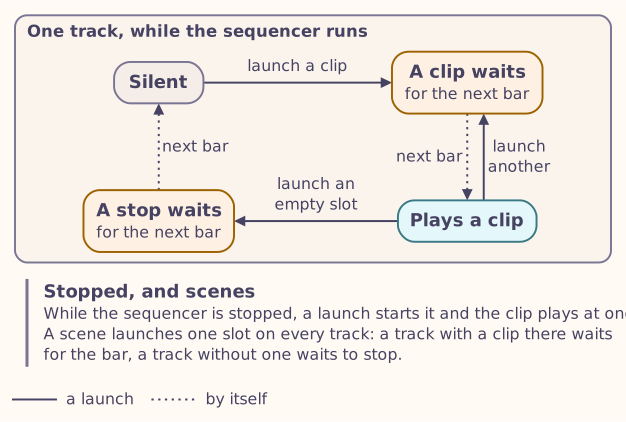
- A launch takes effect at the next bar, so clips change in time.
- Launching a clip while the sequencer is stopped starts the sequencer. Tracks that were playing when you stopped start again with it.
- Launching an empty slot stops the track at the next bar.
- Launching a clip by hand while a song plays stops following the song, but the song keeps its list (Song).
7.6.4 Double Loop
Status:On the desktopPlanned for the device
SEL (SHIFT) and white key 15 are planned to double the clip’s length and copy its notes into the new half: a one-bar idea becomes two bars to develop. Locks and conditions are not copied. A clip that would grow past sixteen bars is left as it is.
7.6.5 To copy steps and clips
Status:In the simulatorOn the desktopPlanned for the device
In the session view:
- Hold OP4 (COPY).
- Press the key of a slot with a clip: it is copied.
- Press the key of each slot to paste it to.
A copied clip takes everything with it: notes, locks, conditions and its settings. Copying single steps in the track view, and duplicating a clip into the next empty slot, are planned; the desktop tools have their commands already.
7.6.6 To delete a clip
Status:In the simulatorOn the desktopPlanned for the device
- In the track view, tap OP5 (CLEAR) with no step held.
- In the session view, hold OP5 (CLEAR) and press the slot’s key.
The screen asks, for example, Delete T2 clip 3?. Press OP5 again to delete the clip. Any other key or button only closes the question, and does nothing else. The question stays until you press something; the knobs do nothing while it shows, and the sequencer keeps playing.
7.6.7 Undo
Status:Planned for the device
UNDO takes back your last gesture, and SEL (SHIFT) with UNDO brings it back. A gesture is one action, such as a step tap or one turn of a knob: a turn counts as finished when you leave the knob for 0.6 s. The desktop tools accept its commands and ignore them.
7.7 Scenes and song
Status:In the simulatorOn the desktopPlanned for the device
A scene is a column of slots: scene 3 is slot 3 of every track. A song is a list of scenes that plays by itself, for an arrangement that runs hands-free.
7.7.1 The session view
Press SEQ while in SEQ mode to switch between the track view and the session view; SEQ blinks slowly in the session view. It shows the eight slots of every track, one row a track, with the scene numbers above and the song along the bottom.
- Keys 1 to 8 launch the focused track’s slots. Keys 9 to 16 focus tracks 1 to 8.
- A slot with a clip has an edge in its track’s sound colour. A playing clip is filled, with a bar along its bottom for how far it has played. A clip waiting for the next bar flashes, and so does one about to stop. The clip each track edits is outlined. A muted track is grey.
- The key lights: keys 1 to 8 are lit for a clip, flash fast for one waiting and slowly for the one playing; keys 9 to 16 are lit for each track, slowly flashing for the focused one.
- Hold OP6 (MUTE) and press keys 1 to 8 to mute tracks, as in the track view. OP4 (COPY) and OP5 (CLEAR) work on slots (To copy steps and clips, To delete a clip).
7.7.2 To launch a scene
In the session view, hold OP2 (LOOP) and press white keys 1 to 8 for scenes 1 to 8.
- The scene starts at the next bar: every track with a clip in that slot plays it, and the others stop. While the sequencer is stopped, launching a scene starts it.
- One scene in a hold launches it and nothing else. A song you have keeps its list, but is no longer followed.
- Two or more scenes in one hold make a new song of them, in the order you press them: the first plays at once, and the others follow. Press a key twice in a row to play its scene twice as long.
- While OP2 is held, keys 1 to 8 show the scenes. With a song: lit for the scene playing, flashing fast for the next one, slowly for the others the song uses. Without one: lit where the column has a clip.
7.7.3 Song
The song plays its scenes one after the other, each for as long as its longest clip, rounded up to whole bars, times its repeats.
- PLAY/STOP plays the song from its first entry. Stopped and started again, it always starts from the top.
- The next scene is launched a bar ahead, so it starts exactly on time. In that last bar the track view’s hint line says what comes next.
- The status line says SONG while the song plays, and END once it has finished in Park.
- A scene with no clips at all stops every track and ends the song there.
- A song holds up to 64 presses: an entry played three times is three.
- Launching a clip, or a single scene, by hand stops following the song, so you can play live over an arrangement. The song keeps its list: stop and play again, or SEL (SHIFT) with PLAY/STOP on the song page, to follow it again.
The band at the bottom of the session view shows the song: an entry per scene, 3x2 for scene 3 played twice, the playing one framed and the next one flashing in its last bar. END or STOP after the last entry say what the song does there; < and > mean there is more to either side.
7.7.4 The song page
SEL (SHIFT) with OP2 (LOOP) opens the song page from the track view or the session view, and the same again goes back. SEQ goes to the track view.
Each row is one entry: its number, its scene and the scene’s name, how many times it plays, its length in bars and the time it starts at the current tempo. The last row, + add, is where new entries go. The top line has the song’s length, what it does at its end, and the entry you are on. While the song plays, the playing entry has a play triangle (▶), its repeats show the pass (2/4) and its bars the bar of that pass (13/16); the cursor follows it until you move the cursor away.
| Control | On the song page |
|---|---|
| SELECT, or OP1 / OP3 | The cursor, up and down the entries and + add |
| SEL + OP1 / OP3 | Moves the entry up or down |
| White keys 1 to 8 | Add a scene after the entry, or at the end from + add. The entry’s own scene plays once more instead |
| White keys 9 to 16 | The entry plays 1 to 8 times |
| KNOB1 | The entry’s scene, 1 to 8. A scene with no clips shows (end) |
| KNOB2 | How many times it plays, up to what the 64 presses leave |
| KNOB3 | The scene’s name: Intro, Verse, Pre, Chorus, Drop, Break, Build, Bridge, Fill, Outro, or none |
| KNOB4 | What the song does at its end: Loop starts again, Park stops every track but keeps the sequencer running, Stop stops the sequencer |
| OP5 (CLEAR) | Deletes the entry |
| SEL + OP5 | Clears the whole song, after a question |
| PLAY/STOP | Plays or stops, from the top |
| SEL + PLAY/STOP | Plays from the entry. While playing, it starts on the next bar, from its beginning |
To build a song from nothing, open the song page and, on + add, press the scenes’ keys in order: 1, 2, 2, 3 makes scene 1, scene 2 twice, then scene 3. Two entries of the same scene side by side become one, with their repeats added, and the screen says Joined.
You can edit while the song plays. The list changes at once and the sound follows at the next bar; deleting or changing the playing entry brings in what takes its place at the next bar.
7.8 Recording
Status:In the simulatorOn the desktopPlanned for the device
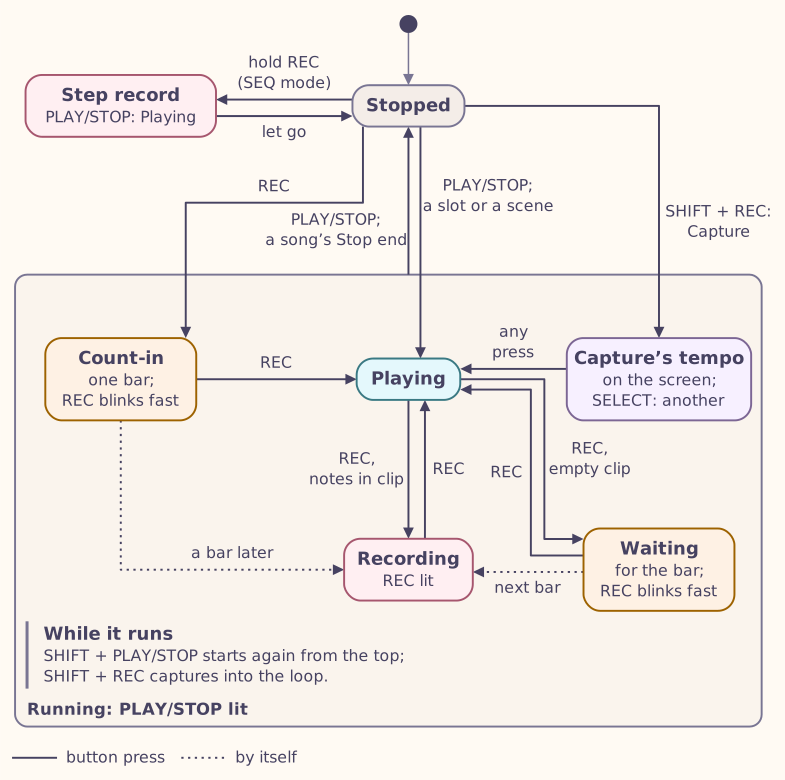
PLAY/STOP and REC move the sequencer between the states below; the rest of this section and the next, Capture, go through each.
7.8.1 To record
- Focus the track to record on (Tracks and routing).
- Press REC. Its light is on while it records.
- Play, on the keys outside SEQ mode or on a keyboard at MIDI IN.
- Press REC again to stop recording. The sequencer keeps playing; PLAY/STOP stops both.
If the sequencer was stopped, it starts with a one-bar count-in, during which REC blinks fast; recording begins on the bar after it. With the metronome on, the count-in clicks.
In SEQ mode while the sequencer is stopped, REC acts when you let go of it, because holding it starts step recording (below): tap it.
7.8.2 First take and overdub
- Into an empty clip (a first take) recording starts on the next bar, and REC blinks fast until then. The clip grows a bar at a time for as long as you keep recording, up to sixteen bars. When you stop recording, it keeps every bar it has reached and loops.
- Into a clip with notes (an overdub) recording starts at once and adds to the notes there. The clip keeps its length.
7.8.3 How played notes are placed
- Each note goes to the nearest step, swing included, and keeps the timing you played, so quantise can pull it in later.
- A note played up to half a step before recording starts lands on the first step.
- A note you hold across the end of the loop keeps growing, up to the length of the clip.
- A note you have just recorded does not play again until the loop comes round, so you never hear it twice.
- Up to 16 notes held at the same time are recorded.
7.8.4 Turning knobs while recording
Turning a knob while you record locks the parameter on the step that is playing, and you hear the change as you turn (Parameter locks).
7.8.5 Metronome
Press SEL (SHIFT) and white key 6 to turn the metronome on or off, or set Metronome on the Set page. It clicks on every beat and accents the first beat of each bar, and a count-in clicks too. In the desktop tools the clicks sound in the rendered audio and are written to the event log.
7.8.6 Step recording
Step recording enters notes one step at a time, without the clock running.
- Stop the sequencer and press SEQ.
- Hold REC. The screen shows STEP, and a red frame, the record head, on the first step; its key blinks fast.
- Play white keys: each one sounds and goes onto the step under the head, and the head moves on when you let go. Keys held together make a chord. Notes at MIDI IN go in too; that is how sharps go in. With a drum kit as the sound (Sophie or Drums), a white key enters the pad it plays.
- Let go of REC when you are done.
While you hold REC:
- OP3 leaves a rest, or, with keys held, ties them into the next step;
- OP1 steps back, or unties;
- SEL (SHIFT) and a white key move the head to that step and clear it.
On an empty track the pattern grows to what you play; on a pattern the head wraps at its end.
7.9 Capture
Status:In the simulatorOn the desktopPlanned for the device
Capture keeps listening while you are not recording. If you played something you like, capture it afterwards and it becomes a clip: press SEL (SHIFT) and REC. While something is waiting to be kept, REC blinks slowly.
Capture in the desktop tools
fm1-seq and fm1-render run with Capture on and 256 events, as the
simulator does and as planned for the FM-1. In compat mode, which
reproduces Movy exactly, they keep 512 like Movy. fm1-seq --capture 0
runs without it.
7.9.1 What Capture keeps
- The notes you play on the keys or at MIDI IN, for the focused track, unless you are recording on it, and not during a count-in.
- Your last phrase: up to eight bars at the current tempo and up to 256 note events. Each note takes two, its start and its end, so that is about 128 notes.
- A pause longer than two bars starts a new phrase. At fast tempos the pause must still last more than 2 seconds, and at slow ones 8 seconds is always enough.
- While the sequencer plays, Capture keeps your latest pass of the loop: when you play again at a point you played on an earlier pass, it starts afresh from there.
Capture empties itself
Starting or stopping the sequencer empties Capture, and so do most edits: a step, a lock, a clip setting, a launch, a recording, or focusing another track (the screen says so). Capture straight after the phrase you want to keep.
7.9.2 To capture while stopped
- With the sequencer stopped, play your phrase.
- Press SEL (SHIFT) and REC.
Into an empty clip, Capture works out the tempo you played at, between 40 and 250 BPM, from three or more notes; with fewer it keeps the current tempo. It sets the sequencer to that tempo, writes the notes into the clip, rounded up to whole bars and at most sixteen, and starts playing it.
Into a clip with notes, or while the sequencer follows an external clock, the tempo stays as it is and your phrase is fitted to it. Into a clip with notes, the phrase is added into the clip’s loop. The sequencer then starts playing, and the screen says which tempo the phrase was fitted to; any press closes the message.
7.9.3 Choosing a tempo
A phrase often fits more than one tempo, typically one and its half or double. Capture then shows up to three, slowest first, with its best guess chosen. Turn SELECT (or KNOB1) to try another: the clip is rewritten at that tempo, and you hear it at once. Any other press keeps the one you hear and closes the choice. Capture does not listen while the choice is open.
7.9.4 To capture while playing
Press SEL (SHIFT) and REC while the sequencer plays, and the notes go where you played them in the loop, into the focused track’s clip, which keeps playing; the screen says Captured. If that clip is empty, Capture makes a new clip as long as your phrase in whole bars, starting where in the bar you started, and launches it at the next bar. With nothing to keep, the screen says Nothing to capture.
7.10 Tracks and routing
Status:In the simulatorOn the desktopPlanned for the device
The track you work on is the focused track: the steps, REC, Capture and what you play all go to it, and its sound becomes the one the keys play and the sound’s page edits.
7.10.1 To focus a track
- Hold SEQ and press white key 1 to 8, in any mode. If you were outside SEQ mode, you are back there when you let go of SEQ.
- In SEQ mode, MONO and POLY focus the previous and the next track.
The screen names the track. Focusing another track empties what Capture holds, and the screen says that too.
7.10.2 To mute a track
- In SEQ mode, tap OP6 (MUTE) to mute or unmute the focused track.
- Hold OP6 and press white keys 1 to 8 to mute and unmute tracks 1 to 8; their lights show which are playing.
The track tiles at the top of the screen show a muted track as its number alone, without its tile. Muting a track ends its sounding notes at once. Its parameter locks keep running (Parameter locks). Solo is planned for later.
7.10.3 Routing
Each track plays one of the four sounds, or an instrument on a USB-MIDI channel from 1 to 16. Set it on the Track page (below): Route chooses Sound or MIDI out, and the next knob the sound (1 Macro, 3 Empty) or the channel. A set keeps its routing.
- In the simulator every track plays Sound 1 until you route it elsewhere.
- A track routed to an empty sound plays nothing.
- The simulator sends no MIDI: a track on MIDI out is silent there.
- Moving a playing track elsewhere lets go of the note it holds where it was sounding.
In the desktop tools, track 1 plays the sound engine when nothing else is routed, and MIDI-routed tracks are written to the event log rather than played (Scripts on the desktop).
7.10.4 Drum tracks
Status:On the desktopPlanned for the device
A track can be made a drum track. Its clips’ transpose then does not apply, so each note keeps its drum, and you can mute up to 16 single drum notes on it, or solo one. Drum tracks are in the sequencer already; their controls are planned for later.
7.11 Transport and clock
Status:In the simulatorOn the desktopPlanned for the device
7.11.1 Play and stop
Press PLAY/STOP, in any mode, to start the sequencer; its light is on while it plays. Play always starts from the beginning: a song from its first scene, otherwise each track’s chosen clip.
Press PLAY/STOP again to stop. Notes end, recording ends, locked parameters return to their base values, and a song goes back to its start. Each track keeps its chosen clip.
SEL (SHIFT) and PLAY/STOP while playing restart from the beginning.
In scripts, a play while the sequencer plays restarts it too.
7.11.2 Tempo
The tempo runs from 20 to 300 BPM in steps of 0.01 BPM, and is 120 BPM when the sequencer starts up. Set it on the Set page: 1 BPM a click, 0.1 with SEL (SHIFT) held. The tempo, the swing and the default quantise belong to the set as a whole. The status line under the simulator’s panel shows the tempo and the transport.
7.11.3 MIDI clock out
Status:On the desktopPlanned for the device
While it plays, the sequencer sends MIDI clock: Start when it starts, 24 pulses per quarter note, and Stop when it stops. A restart sends Stop and then Start, so devices that follow stay in time. On the FM-1 the clock is planned on USB-MIDI; the desktop tools write it to the event log, and the simulator sends no MIDI.
7.11.4 Following an external clock
Status:On the desktopPlanned for the device
When MIDI clock arrives while the sequencer plays, the sequencer follows it:
- It waits for the next bar of the incoming clock, counted from its first pulse, then plays in step with it.
- It takes its tempo from the pulses, smoothing out small changes.
- It stops sending clock of its own while it follows.
- A MIDI Start restarts it from the beginning.
- If the pulses stop for half a second, or a MIDI Stop arrives, it carries on by itself at the last tempo, and sends Start to its own followers at the next bar.
In the desktop tools, a MIDI Start or Stop also starts or stops the
sequencer itself, but only while the set’s link setting is on: link 1 in
a script, or a set saved with it on. It is off otherwise. The simulator does
not read MIDI clock yet. On the FM-1, Continue and Song Position are planned
as well (chapter 9).
7.12 The Set, Clip and Track pages
Status:In the simulatorPlanned for the device
The sequencer’s settings are on three pages of SEQ mode, in rows like the sound’s page. Hold SEL (SHIFT) with no step held to see the shortcuts, then press a white key:
| SEL (SHIFT) and white key | Does |
|---|---|
| 2 | Opens the Track page |
| 3 | Opens the Clip page (Clips) |
| 5, 7 or 9 | Opens the Set page |
| 6 | Turns the metronome on or off |
| 10 | Full velocity on or off |
| 16 | Steps the clip’s quantise: 0 %, the set’s default, 100 % |
SELECT also walks on from the sound’s last page to the Set, Clip and Track pages. SEQ goes back to the steps.
| Page | KNOB1 | KNOB2 | KNOB3 | KNOB4 |
|---|---|---|---|---|
| Set (Set: all tracks) | Tempo | Swing, 50 to 80 % | Def quant, the quantise new clips get | Metronome |
| Clip (Clip: track 1) | Speed | Length | Transpose | Quantize |
| Track (Track 1 of 8) | Route: Sound or MIDI out | Sound, or Channel 1 to 16 | Mute |
Track page 2 (turn SELECT) lists the focused track’s eight lock lanes: each parameter’s name and its base value from 0 to 127, an unused lane as –. On Track page 1 the sound is in its colour, as on the status line.
7.13 Memory
Status:In the simulatorOn the desktopPlanned for the device
The FM-1 has no room to spare, so the sequencer keeps its notes, locks and step conditions in fixed pools that every clip of the set draws from, and reserves all its memory when it starts. A full pool never corrupts a set: an edit that does not fit is refused whole, never half done. The simulator’s sequencer is the FM-1 build, and its memory counts in the meter on the screen (chapter 6).
| Tracks | Without Capture | With a 256-event Capture |
|---|---|---|
| 4 | 4 % | 5 % |
| 6 | 6 % | 7 % |
| 8 | 8 % | 9 % |
| 16 | 15 % | 16 % |
| Pool | For each track | Notes |
|---|---|---|
| Notes | 192 | One clip can hold up to 512 |
| Parameter locks | 192 | One clip can hold up to 1,024 |
| Step conditions and probabilities | 32 | One clip can hold up to 1,024 |
The pools are shared, so one busy clip can use what quieter tracks leave free. Besides them the set has room for 64 notes sounding at once (when all are in use, the oldest ends to make room), a song of 64 entries, and 16 notes held at once while recording.
7.14 Controls at a glance
Status:In the simulatorPlanned for the device
In SEQ mode unless the gesture says otherwise. The last rows are planned and not in the simulator yet.
| Gesture | What it does | See |
|---|---|---|
| SEQ | Opens SEQ mode from any mode | SEQ mode and the keys |
| Tap a white key | Puts notes on the step, or removes them | Steps and notes |
| Hold a step for 300 ms | Opens the step pages | The step pages |
| Hold a step, press a later step | Sets the length of the held step’s notes | Steps and notes |
| Hold a step and SEL (SHIFT), press white keys | Adds pitches to the step | Steps and notes |
| Hold steps, tap SEL (SHIFT) | Clears their notes | Steps and notes |
| Hold steps, press OP1 or OP3 | Nudges their notes 2 ticks; with SHIFT, 1 tick | Steps and notes |
| Hold steps, press OCT- or OCT+ | Transposes them a semitone; with SHIFT, an octave | Steps and notes |
| OP1, OP3 | The previous and the next bar | Steps and notes |
| Hold a step, SELECT past the step pages, turn a knob | Locks the parameter on the step | Parameter locks |
| Hold a step and SEL (SHIFT), turn a knob | Clears that lock | Parameter locks |
| Hold steps, press OP5 (CLEAR) | Clears their locks | Parameter locks |
| Hold OP5 (CLEAR), turn a knob one click | Clears that parameter’s locks on the track | Parameter locks |
| PLAY/STOP, in any mode | Starts from the beginning, or stops; with SHIFT while playing, restarts | Transport and clock |
| REC, in any mode | Starts or stops recording | Recording |
| Hold REC, stopped, in SEQ mode | Step recording | Recording |
| SEL (SHIFT) and REC | Capture | Capture |
| Hold SEQ, press white key 1 to 8, in any mode | Focuses that track | Tracks and routing |
| MONO, POLY | The previous and the next track | Tracks and routing |
| Tap OP6 (MUTE); hold it and press white keys 1 to 8 | Mutes the track; mutes and unmutes tracks 1 to 8 | Tracks and routing |
| SEL (SHIFT) and white key 2, 3, or 5, 7, 9 | The Track, Clip and Set pages | The Set, Clip and Track pages |
| SEL (SHIFT) and white key 6, 10, 16 | Metronome, full velocity, the clip’s quantise | The Set, Clip and Track pages |
| LOOP, then two bars; LOOP and SELECT | Sets the loop window; makes it longer or shorter (planned) | Clips |
| Hold COPY, press a step, then others | Copies the step to the others (planned) | Clips |
| SEL (SHIFT) and white key 15 | Double Loop (planned) | Clips |
| SESSION | Shows every track and slot (planned) | Scenes and song |
| UNDO; SEL (SHIFT) and UNDO | Undo; redo (planned) | Clips |
7.15 Scripts on the desktop
Status:On the desktop
The desktop tools drive the sequencer from a text script: one command per
line, each a time, a verb and its arguments. fm1-seq runs the sequencer on
its own and writes every event it produces; fm1-render plays the same
script through a sound engine into a WAV file.
7.15.1 The script format
#! rate=44118 block=64 tracks=4 end=264708
# A one-bar pattern on track 0 with a brighter second note, then play.
@0 bpm 12000
@0 tog 0 0 48 100; tog 0 4 55 90; tog 0 8 60 100; tog 0 12 55 90
@0 alabel 0 0 synth:Timbre; abaseq 0 0 40
@0 aset 0 0 4 110 1
@0 play
- The first line,
#!, sets the sample rate (default 44,118 Hz), the block size in frames (default 128), the number of tracks (default 8) and, withend, how many frames to run. Withoutendthe run stops just after the last command. - Each command line starts with
@and the frame at which it applies, in samples at the script’s rate. Several commands can share a line, separated by;. - Lines starting with
#are comments. - Tracks, steps, slots and scenes count from 0. Tempos are in hundredths of a BPM, and lock values run from 0 to 127.
- A line
@<frame> rt F8delivers a MIDI clock pulse to the sequencer;FA,FBandFCare Start, Continue and Stop.
In the example, tog puts four notes on steps 0, 4, 8 and 12 of track 0.
alabel assigns lock lane 0 to the parameter Timbre, abaseq sets its base
value to 40 without sending it, and aset locks the value 110 on step 4,
quietly.
7.15.2 To render a script and keep the set
engines/build/fm1-render --engine macro --cmd pattern.txt \
    --log-events pattern.jsonl --out pattern.wav
engines/build/fm1-seq --cmd pattern.txt --export pattern.movy1
engines/build/fm1-render --engine macro --seq pattern.movy1 \
    --seconds 8 --out set.wav
- The first line plays the script through Macro into
pattern.wavand logs every event. - The second runs it through the sequencer alone and saves the resulting
set as text, in Movy’s
movy1format (chapter 10). - The third loads that set and plays it from the beginning for eight seconds.
7.15.3 Routing and the event log
- A lock lane’s label names the engine parameter it drives: the part after
the last
:, such asTimbreinsynth:Timbre, matched without regard to case. A label that names no parameter of the engine does nothing. - With no routing given, track 0 plays the engine.
--route 1:enginesends track 1 to the engine as well, and--route 2:midi:3sends track 2 to MIDI channel 3, which the event log records but nothing plays. - With
--slots, or any of the multi-sound options (--sound,--insert,--level), a track routed to the engine plays the sound its route names, as in the simulator:route 1 1 2sends track 1 to Sound 3. - The event log has one line per event, in JSON: the block, the frame, the
tick, the kind (
on,off,cc,clock,start,stoporclick), the track and two values. A lock is logged as kindcc, controller 102 plus its lane. fm1-render’s summary line reportsseq_refused: edits that did not fit the sequencer’s memory.
7.15.4 Commands
| Verb | Arguments | What it does |
|---|---|---|
| Transport and tempo | ||
play | – | Starts from the beginning: the song from its first scene, or each track’s chosen clip. While playing, restarts, sending Stop and then Start to MIDI clock followers. |
stop | – | Stops. Ends recording, ends every sounding note and returns locked parameters to their base values. |
link | <0|1> | Movy’s link to the Move’s own transport. Here, while it is 1, an incoming MIDI Start also starts a stopped sequencer and a MIDI Stop stops it. Off by default; kept in a saved set. |
bpm | <bpm×100> | Sets the tempo in hundredths of a beat per minute, 2000 to 30000 (20 to 300 BPM). |
swing | <percent> | Sets the swing, 50 (straight) to 80. |
metro | <0|1> | Turns the metronome click off or on. |
key | <root> <scale> | Lunar Modulator’s own verb: the project key, kept in a saved set with the tempo. Root 0 (C) to 11 (B); scale 0 major, 1 minor, 2 chromatic, 3 Dorian, 4 Phrygian, 5 Lydian, 6 Mixolydian, 7 Locrian. Out of range, nothing changes. The sequencer plays the same in any key; the MIDI effects get it. |
| Steps and notes | ||
tog | <track> <step> [<pitch> <velocity>]… | Toggles a step in the track’s chosen clip, with up to 12 pitch and velocity pairs (a chord). |
evel | <track> <from> <to> <pitch> <change> | Changes the velocity of the notes on a range of steps by the given amount. |
elen | <track> <from> <to> <pitch> <change> | Changes the length of the notes on a range of steps, in ticks. |
enudge | <track> <from> <to> <pitch> <change> | Moves the notes on a range of steps earlier or later, in ticks, within a step of where they belong. |
etrn | <track> <from> <to> <pitch> <change> | Transposes the notes on a range of steps by semitones. |
hold | <track> <step|-1> | Tells the sequencer which step is held, so that locks set while holding it are not sounded at once; -1 releases it. |
slen | <track> <from> <to> <pitch> <ticks> | Sets the length of the notes on a range of steps, in ticks (at least 1). |
del | <track> <from> <to> <pitch> | Deletes notes on a range of steps: one pitch, or all with -1. |
addp | <track> <from> <to> <pitch> <velocity> | Adds a pitch to every step from one step to another, where the step does not have it yet. |
ltog | <track> <step> <pitch> <velocity> | Toggles one pitch on a step, leaving the step’s other notes. |
| Conditions and probability | ||
eprob | <track> <from> <to> <pitch> <percent> | Sets the probability, 0 to 100 %, of a range of steps or of one pitch on them. |
econd | <track> <from> <to> <pitch> <A> <B> | Sets the condition A:B (each 1 to 64): play on the A-th pass of every B. |
einv | <track> <from> <to> <pitch> <0|1> | Inverts the condition, so the step plays on the passes it would skip. |
| Clips | ||
clen | <track> <steps> | Sets the chosen clip’s length in steps. |
cscl | <track> <numerator> <denominator> | Sets the chosen clip’s speed as a fraction of the tempo, from 1/8 to 4. |
ctr | <track> <semitones> | Transposes the chosen clip, -36 to +36 semitones, without changing its notes. |
cq | <track> <percent> | Sets the chosen clip’s quantise, 0 (as played) to 100 (on the grid). |
dq | <percent> | Sets the quantise new clips start with. |
clipdup | <track> | Duplicates the chosen clip into the next empty slot and chooses the copy. |
clipdel | <track> | Deletes the chosen clip. |
clipsel | <track> <slot> | Chooses which of the track’s eight slots the edits apply to. |
clipcopy | <track> <slot> | Copies a clip to the clip clipboard. |
clippaste | <track> <slot> | Pastes the clip clipboard into a slot and chooses it. |
clipdelat | <track> <slot> | Deletes the clip in a slot. |
cpy | <track> <from> <to> | Copies a range of steps, notes and locks, to the step clipboard. |
pst | <track> <step> | Pastes the step clipboard from the given step on. |
cpyclr | – | Empties the step clipboard. |
loop | <track> <start> <length> | Sets the chosen clip’s loop window: its first step and its length. |
dbl | <track> | Double Loop: doubles the chosen clip’s length and copies the notes in its loop window into the new half. Locks and conditions are not copied. |
| Launching, scenes and song | ||
launch | <track> <slot> | Launches a clip on the next bar; starts playback if stopped. An empty slot stops the track. A song stops being followed but keeps its list (Movy deletes it). |
song | <scene> | Starts a new song with this scene and launches it. |
songadd | <scene> | Adds a scene to the end of the song. |
stoptrk | <track> | Stops a track on the next bar. |
sgins | <entry> <scene> [<repeats>] | Lunar Modulator’s own verb: inserts a scene, played once or more, before an entry of the song (the number of entries adds it at the end). Makes a song if there is none, without launching anything. A song holds 64 scene plays at most. |
sgdel | <entry> | Lunar Modulator’s own verb: deletes an entry of the song. If it is playing, the next entry plays from the next bar. |
sgset | <entry> <scene> <repeats> | Lunar Modulator’s own verb: changes an entry’s scene and how many times it plays. Two entries of one scene side by side join into one. |
sgmov | <entry> <places> | Lunar Modulator’s own verb: moves an entry later in the song, or earlier with a negative number. |
sgclr | – | Lunar Modulator’s own verb: clears the song. What is playing keeps playing. |
sgend | <0|1|2> | Lunar Modulator’s own verb: what happens after the song’s last entry: 0 back to the first (Movy’s way), 1 every track stops while the clock runs on, 2 playback stops. |
sgjump | <entry> | Lunar Modulator’s own verb: plays the song from an entry. While playing, it starts on the next bar; when stopped, the next play starts there. |
scene | <scene> | Lunar Modulator’s own verb: launches a scene by hand on the next bar, or at once when stopped. A song stops being followed but keeps its list. |
sgnew | <scene> | Lunar Modulator’s own verb: makes a new song of this scene, followed from where it already plays or is queued, without launching it again (the second scene of a LOOP hold). |
sgname | <scene> <0-10> | Lunar Modulator’s own verb: names a scene: 1 Intro, 2 Verse, 3 Pre, 4 Chorus, 5 Drop, 6 Break, 7 Build, 8 Bridge, 9 Fill, 10 Outro; 0 removes the name. |
| Recording and Capture | ||
watch | <track> | Chooses the track Capture listens to, and empties what it holds. |
wlane | <pitch|-1> | The drum note the step editor works on, or -1 for whole steps. |
rec | <track> | Starts or stops recording on a track: with a one-bar count-in when stopped, at once (overdub) or on the next bar (first take) when playing. |
cap | <track> | Capture: turns what was just played into a clip on the track. When stopped, it first offers tempos to choose from. |
capclr | – | Empties what Capture holds. |
capsel | <candidate> | Chooses one of the tempos Capture offers. |
capdone | – | Accepts the chosen tempo and closes Capture’s choice. |
non | <track> <pitch> <velocity> | A note played live, for recording and Capture. |
nof | <track> <pitch> | The end of a note played live. |
| Tracks and routing | ||
tdrum | <track> <0|1> | Makes a track a drum track: clip transpose does not apply, and single drum notes can be muted or soloed. |
mute | <track> <0|1> | Mutes or unmutes a track; muting ends its sounding notes. |
pmute | <track> <pitch> <0|1> | Mutes or unmutes one drum note on a track. |
psolo | <track> <pitch> | Solos one drum note on a track; a value outside 0 to 127 ends the solo. |
route | <track> <0|1> <channel|slot> | Lunar Modulator’s own verb: 0 sends the track to a USB-MIDI channel (1 to 16), 1 to a sound engine slot. |
| Parameter locks | ||
alabel | <track> <lane> <label> | Assigns a lock lane (0 to 7) to a parameter by name, such as synth:Timbre. |
abase | <track> <lane> <value> | Sets a lane’s base value, 0 to 127, and sends it at once if the lane is assigned. |
abaseq | <track> <lane> <value> | Sets a lane’s base value without sending it. |
aset | <track> <lane> <step> <value> [<quiet>] | Locks a value on a step and sends it at once, unless a fifth argument other than 0 asks for quiet. |
aclr | <track> <lane> | Clears a lane in every clip of the track and frees it; the parameter returns to its base. |
aclrs | <track> <lane> <step> | Clears one lock; a lane with no locks left is freed. |
aclrstep | <track> <step> | Clears every lock on a step. |
asetr | <track> <lane> <from> <to> <value> [<quiet>] | Locks the same value on a range of steps. |
| Undo | ||
usnap | – | Accepted and ignored for now: undo comes with the FM-1’s interface. |
uswap | – | Accepted and ignored for now. |
ucommit | – | Accepted and ignored for now. |
udrop | – | Accepted and ignored for now. |
uclr | – | Accepted and ignored for now. |
| Movy on the Move only | ||
minject | <0|1> | Movy’s note injection on the Move. Stored; no effect in Lunar Modulator. |