3 Panel tour
This chapter names every control on the FM-1 and says what Lunar Modulator does with it. The drawing is to scale and matches the simulator’s panel. Each section says which parts work in the simulator today and which are planned for the device.
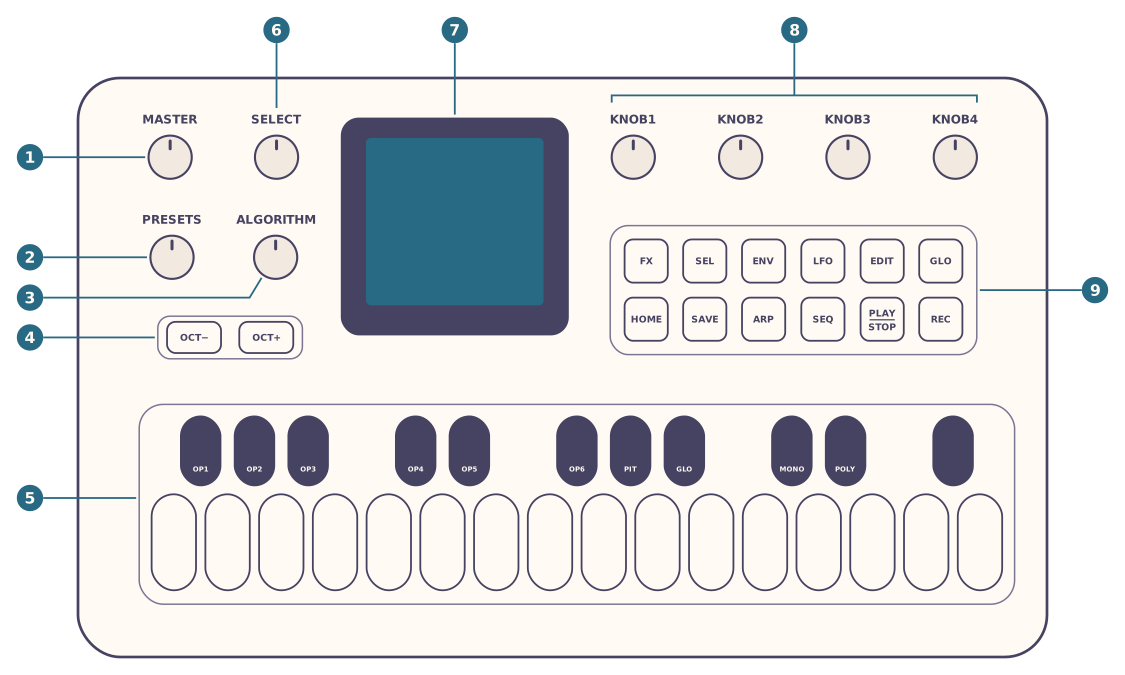
| No. | Control | What it does in Lunar Modulator |
|---|---|---|
| 1 | MASTER | Output volume |
| 2 | PRESETS | Chooses the sound engine; with SEL held, which of the four sounds you play |
| 3 | ALGORITHM | Steps through the engine’s main list: its model, shape, patch or pad. In FX mode it chooses the effect in the chosen slot |
| 4 | OCT- and OCT+ | Move the keyboard down or up an octave; both together reset octave and transpose |
| 5 | Keys | 27 keys, F3 to G5 at the middle octave |
| 6 | SELECT | Turns the page. In FX mode it moves between the effect slots and their pages |
| 7 | Screen | The 240 × 240 colour display |
| 8 | KNOB1 to KNOB4 | Change the four parameters shown on the screen |
| 9 | Function buttons | Twelve buttons in two rows. All but SAVE work today |
3.1 Knobs
Status:In the simulatorPlanned for the device
The FM-1 has eight knobs. MASTER is a potentiometer: it turns between two end stops, and its position is the volume. The other seven are encoders: they turn without end, in steps you can feel.
| Knob | What it does |
|---|---|
| MASTER | The output volume, from silent to full. While you turn it the screen shows Volume and its position from 0 to 100 |
| SELECT | On the sound’s page, turns the page. In FX mode, moves through the slots of the chain and their pages. In SEQ mode and on the modulation pages it does more (chapters 7 and 8). On the global page it turns between Globe and Key |
| PRESETS | Chooses the current sound’s engine, in this order: Macro, Shapes, Macro Heavy, Six-Op FM, FM6, Sophie, Drums, Test Sine, and round again; Sounds 2 to 4 start the list with Empty. With SEL held, chooses the current sound, 1 to 4 (chapter 5) |
| ALGORITHM | Steps through the engine’s main list: Model for Macro and Macro Heavy, Shape for Shapes, Patch for Six-Op FM and FM6, Pad for Sophie and Drums. Test Sine has none. In FX mode it chooses the effect in the chosen slot. With OCT- or OCT+ held, it transposes (chapter 4) |
| KNOB1 to KNOB4 | Change the four parameters of the current page, in the order the screen lists them. With LFO or ENV held, they make a modulation cable (chapter 8). On the global page KNOB1 and KNOB2 set the project key (chapter 10) |
3.1.1 How far one step goes
- A list parameter (Model, Shape, Patch, Pad and the like) moves one value per step and stops at each end of its list.
- A continuous parameter moves a hundredth of its range per step, so 100 steps take it from one end to the other. Parameters whose range runs between whole numbers ten or more apart move in whole units instead: Sophie’s Tune moves a semitone per step, and its Sweep two units.
- A frequency or a time on an effect (a cutoff, a crossover, a delay or a release) also takes 100 steps from end to end, but each step multiplies it by the same ratio, so every step is the same musical interval, at the low end as at the high: on a cutoff from 20 Hz to 18 kHz, about a semitone (chapter 6).
- PRESETS, and ALGORITHM in FX mode, go round: after the last choice comes the first.
- Speed makes no difference. Every step is the same size however fast you turn; there is no acceleration.
MASTER is not linear: half way round gives a quarter of full level, about 12 dB down.
3.1.2 Turning knobs in the simulator
Drag a knob up or down, or scroll over it. Dragging 6 pixels turns an encoder one step; MASTER goes from silent to full over 180 pixels. Scrolling turns an encoder one step at the start of each scroll, then one step for every 60 pixels the page would have scrolled, and MASTER 2 % per step. From the computer keyboard, choose a knob with Tab and turn it with the arrow keys (chapter 2).
3.1.3 On the FM-1
The FM-1’s knobs are planned to work as they do in the simulator. Other open firmware for the FM-1 reports that its processor reads all seven encoders through its key scanning, and MASTER as an analogue input; this project has still to check that on a unit. It does not change what the knobs do.
3.2 Buttons
Status:In the simulatorPlanned for the device
The FM-1 has fourteen buttons, each with a light. OCT- and OCT+ sit at the left, under ALGORITHM. The other twelve, the function buttons, sit in two rows of six under KNOB1 to KNOB4: FX, SEL, ENV, LFO, EDIT, GLO on top, and HOME, SAVE, ARP, SEQ, PLAY/STOP, REC below.
| Button | In the simulator | Planned for the device |
|---|---|---|
| OCT-, OCT+ | Move the keyboard an octave down or up, three octaves at most either way. Press both together to return to the middle octave and cancel any transpose. Hold one and turn ALGORITHM to transpose | The same (chapter 4) |
| FX | Shows the effect chain (chapter 6). Press it again to return to the sound’s page | The same |
| SEL | In FX mode, picks up the chosen effect so that SELECT swaps it with its neighbour; press SEL again to put it down. Everywhere else it is SHIFT, the sequencer’s second function key: held, it changes what the keys, knobs and buttons do (chapter 7); with PRESETS it chooses the current sound. In the modulation pages it picks up a module, or opens a cable’s chain (chapter 8) | The same |
| ENV, LFO | A tap shows the modulation rack at an envelope or an LFO; held while you turn a knob, they make a cable to that knob’s parameter (chapter 8) | The same |
| EDIT | Shows the modulation matrix, the list of cables; press it again to leave (chapter 8) | The same |
| GLO | Shows the global page, with the project key on its second page; press it again to leave | The global page, with settings (chapter 10) |
| HOME | Returns to the sound’s page from any mode | The same |
| SEQ | Shows the sequencer’s steps, SEQ mode, from any mode; held with a white key 1 to 8, focuses that track (chapter 7) | The same |
| PLAY/STOP | Starts and stops the sequencer, in any mode | The same |
| REC | Records into the focused track; held in SEQ mode while stopped, step recording; with SEL, Capture (chapter 7) | The same |
| SAVE | Keeps the project in the browser, where Saved in this browser lists it (chapter 10) | Saving projects, after the one rule |
| ARP | A tap switches the current sound’s arpeggiator on, and opens its pages, or off; held, it latches; with SEL, it opens the pages (chapter 4) | The same |
3.2.1 Button lights
| Light | What it means |
|---|---|
| OCT- or OCT+ | How far the keyboard is from the middle octave, on the button for that direction: off at the middle octave, a slow blink one octave away, a fast blink two away, steady three away |
| FX | On in FX mode |
| SEL | On while an effect or a module is picked up, while you hold it as SHIFT, and in a cable’s chain |
| GLO | On while the global page is shown |
| SEQ | On in SEQ mode |
| PLAY/STOP | On while the sequencer plays |
| REC | On while recording; a fast blink during a count-in or while a first take waits for its bar; a slow blink while Capture holds notes you could keep |
| LFO, ENV | On while the rack shows one of their modules |
| EDIT | On in the matrix and the chain |
| ARP | On while the current sound’s arpeggiator is on; a blink once a second while it latches |
| Any other button | On while you hold it |
3.2.2 Functions still to be given a key
The sequencer needs more functions than the panel has free buttons. In SEQ mode the black keys take some of them (Keys) and SEL is SHIFT. A few are still to be assigned a key; this manual draws them with a dashed outline: COPY, LOOP, SESSION and UNDO. Chapter 7 describes what each one does.
3.3 Keys
Status:In the simulatorPlanned for the device
The FM-1 has 27 keys, from F3 to G5 at the middle octave: 16 white and 11 black, each with a light. The lowest key plays MIDI note 53. OCT- and OCT+ move the whole keyboard by octaves, and ALGORITHM with one of them held moves it by semitones (chapter 4).
- How hard you play. In the simulator, the place you press a key sets its velocity: softest at the top of the key, loudest at the bottom. Whether the FM-1’s own keys can sense how hard they are played has not been measured yet.
- Key lights. A key’s light is on while its note is held, whether you hold the key or a MIDI keyboard plays that note. With a drum kit as the sound, a white key lights while its pad’s note is held.
- Drum kits’ pads. With Sophie or Drums as the current sound, the 16 white keys play the kit’s 16 pads at any octave, and the black keys play nothing (chapter 5).
The FM-1 prints labels under its black keys for M-VAVE’s own firmware: from the lowest black key upwards, OP1 to OP6, PIT, GLO, MONO and POLY; the highest black key has none. This manual uses them to name the black keys. Outside SEQ mode, SEL held with MONO or POLY sets the current sound’s Voice Mode (chapter 4).
The keys and the sequencer
The keys have two jobs. Outside SEQ mode they play notes, as usual. In SEQ mode (SEQ) the sixteen white keys are the sixteen steps of a bar, and the black keys are sequencer controls: OP1 and OP3 change bar, OP5 clears, OP6 mutes, MONO and POLY change track. Chapter 7 describes them.
3.4 Screen
Status:In the simulatorPlanned for the device
The screen has three parts: a bar along the top, the current mode in the middle, and a bar along the bottom. The code that draws it is meant to carry over to the FM-1, so the device’s screen is planned to look as the simulator’s does.
3.4.1 The top and bottom bars
- Top bar. The name of the sound engine (with two or more sounds in use, the current sound’s number first, such as S2 Shapes), and at the right a level meter. The meter shows the output from silent (−48 dB) to full scale, before MASTER. It turns red when the output comes close to full scale, where the limiter is holding it down (chapter 6).
- Bottom bar, left. The page you are on and how many there are, such as 1/2, and the mode: Sound, an effect slot such as M1 or S1 In2, Mix, Seq, Globe or Key on the global page, or a modulation page.
- Bottom bar, right. The memory meter: a bar and the share, in percent, of the FM-1’s memory the sounds, effects, sequencer and modulation would take. 100 % is the room M-VAVE’s firmware leaves free on the FM-1, the simulator’s estimate of what Lunar Modulator will have there (chapter 13). Whatever would take it past 100 % is refused (chapter 6).
3.4.2 The sound’s page
The simulator starts on this page, and HOME returns to it.
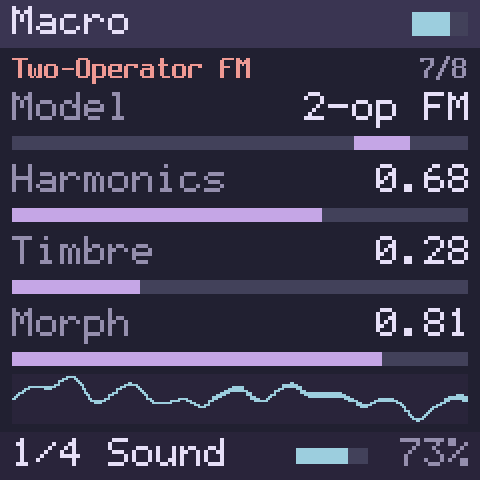
- The main list. Under the top bar, in rose and a smaller type, the current value of the engine’s main list by its full name (Phase Distortion, which the row below shortens to PhaseDist): the model, shape, patch or pad. On the right, its place in the list, such as 2/8. Test Sine has no list, so the line is left empty.
- Four rows. One row for each parameter on the page, in knob order: KNOB1 at the top, KNOB4 at the bottom. Each row shows the name and the value, with a bar beneath.
- Bars. A bar fills from the left for most parameters. For a parameter that runs from negative to positive, such as Sophie’s Tune, it fills from a centre mark. For a list parameter, a short marker shows where the value sits in the list. For a frequency or a time, the bar shows where the knob is, which is not the same share of the value’s range.
- Modulation. A parameter that a modulation cable reaches has its name in the modulation colour and a bracket of that colour on its bar (chapter 8).
- Oscilloscope. A strip at the bottom shows the waveform of the output. It is scaled to fill the strip, so quiet sounds show up too. On a page with fewer than four parameters it grows into the empty rows.
With no engine in the current sound (Sounds 2 to 4 can be empty) the page says Empty sound: turn PRESETS.
3.4.3 The effects page
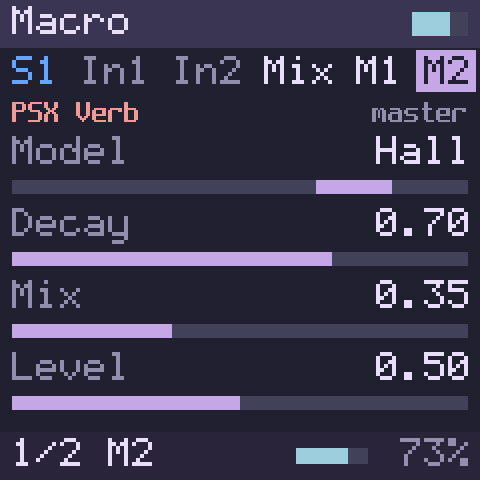
FX shows the effect chain:
- The chain, on the first line: the current sound (S1), its two inserts (In1, In2), the Mix page and the two master slots (M1, M2). The chosen one is highlighted, in gold while you have its effect picked up with SEL. The sound’s number and its inserts that hold an effect are in the sound’s own colour (below); an empty slot is dim.
- The chosen slot’s effect, in rose, by its full name (Compressor for Comp), and on the right what the slot is: insert, master or mix. An empty slot reads Empty.
- The chosen effect’s parameters, as rows and bars like the sound’s page. An empty slot says Empty slot: turn ALGORITHM instead. The Mix page shows the four sounds’ levels, each name and bar in that sound’s colour; an empty sound’s bar is left unfilled.
- The bottom bar shows the page and the slot, such as 1/2 M2, or 1/2 S1 In1 for an insert.
Each of the four sounds has a colour of its own wherever it is named: Sound 1 blue, Sound 2 orange, Sound 3 green and Sound 4 yellow-green, in the top bar’s S2, the chain, the Mix page, the list of sounds, the sequencer’s tracks and the modulation pages. The number always goes with the colour.
3.4.4 What the colours mean
Each colour on the screen means one thing, wherever it appears:
| Colour | Means | Where you see it |
|---|---|---|
| Lilac | What is chosen, and the value you edit | Value bars, notes in the sequencer’s grid, the highlighted row of a list or the matrix, the chosen slot in FX mode |
| Gold | Held or locked | Steps you hold, parameter locks and lanes, a module or effect picked up with SEL, REC during a count-in, a latched arpeggiator |
| Blue-green | A live signal, or modulation | The oscilloscope, the meters, PLAY, a modulated parameter’s name and bracket, the matrix’s sources |
| Rose | Where you are | The line under the top bar (the model, Step 7, Lock step 6) and a list’s title |
| Red | Refused, recording, or over the limit | A message that refuses something, REC and STEP, a refused cable, the meters at their limit |
| Grey | Labels and things at rest | Parameter names, a list’s place, Empty, STOP |
| Blue, orange, green, yellow-green | Sounds 1 to 4 | Beside the sound’s number (above) |
3.4.5 The sequencer, modulation and arpeggiator pages
SEQ shows the sequencer’s steps, LFO, ENV and EDIT the modulation pages, and ARP the arpeggiator’s. Chapters 7, 8 and 4 describe them.
3.4.6 The global page
GLO shows the sample rate, the block size, the share of the FM-1’s free memory the sounds and effects take, in percent, the current sound’s number of voices, the names of the two master effects (M1 and M2), and the octave and transpose. The bottom bar reads Globe, the name M-VAVE’s firmware gives this page. SELECT turns to a second page, Key, where KNOB1 and KNOB2 set the project key’s root and scale, each opening its list as you turn it; they do so from Globe too, which then turns to Key. Chapter 10 describes both.
3.4.7 Lists
When you turn through a list, the list appears over the middle of the screen until about a second after your last turn: its name in rose at the top left, the chosen entry’s place at the top right (such as 34/96), and its entries, the chosen one highlighted. A long list shows eight entries at a time in a smaller type; the four sounds, the quantize values and Capture’s tempos and the arpeggiator’s presets show all of theirs in the main type. The chosen entry sits on the third row, with the two before it above and the rest after it below; at either end of the list the rows stop moving and the highlight goes to the first or last row. A small triangle above the entries means the list goes on above them, one below them that it goes on below. Empty and Empty slot are dim. Entries go by their full names: where an engine’s own name is short, the list spells it out (Phase Distortion for PhaseDist, Triple Saw for 3x Saw, Compressor for Comp).
| List | When |
|---|---|
| Engine: the sound engines, after Empty on Sounds 2 to 4 (S2 engine and the like while more than one sound is in use) | You turn PRESETS |
| The engine’s main list, such as Model or Patch | You turn ALGORITHM |
| A parameter’s list, such as Patch, Shape or Pad | You turn the knob of a list parameter with five entries or more; a shorter one, such as Off and On, changes on its row |
| Master 1 effect, S1 insert 1 effect and the like: Empty slot, then every effect | You turn ALGORITHM in FX mode |
| Current sound: the four sounds and what each holds, each in its colour | You turn PRESETS with SEL held |
| Mod3 kind and the like: Empty, then the sixteen kinds | You turn ALGORITHM in the rack (chapter 8) |
| Destination: every parameter a cable can reach | You turn KNOB2 in the matrix (chapter 8) |
| Clip quantize: 0 %, the set’s default and 100 % | You press white key 16 with SEL held in SEQ mode (chapter 7) |
| Capture tempo: the tempos a phrase fits | You capture while the sequencer is stopped (chapter 7) |
| Arp preset: the stock FM-1’s six arpeggio modes | You turn ALGORITHM on the ARP pages (chapter 4) |
3.4.8 Messages
Short messages appear for about a second. One that fits a line, such as Volume 75 or Metronome on, is a band across the bottom of the page, which stays in view; a longer one covers the middle of the screen. A message that refuses something always covers the middle, its reason in red:
| Message | When |
|---|---|
| Volume 75 | You turn MASTER |
| Octave +1 | You press OCT- or OCT+ |
| Transpose -2 | You turn ALGORITHM with OCT- or OCT+ held |
| Octave 0, Transpose 0 | You press OCT- and OCT+ together |
| An engine’s name and refuses 48000 Hz | That engine cannot run at the sample rate the browser chose (chapter 2) |
| An engine’s or effect’s name, does not fit and what the chain would need, such as needs 112% of RAM | It would take the chain past the FM-1’s memory (chapter 6) |
| A track, Captured, Metronome on and the like | The sequencer did something you asked (chapter 7) |
| A cable and its amount, such as LFO1 > S2 Color +12% | You make a cable (chapter 8) |
| SAVED and the project’s name | You press SAVE: the project is kept in the browser |
| NOT SAVED and why | The page could not keep the project. Where the browser blocks storage, SAVE keeps it for this visit only, and the page says so |
A larger screen
Under the panel, Screen ×2 shows a second copy of the screen at twice the size.
3.5 Connections
Status:Planned for the device

The connectors are on the edge above the screen. From left to right, seen from above with the keys towards you:
| Connector | What it is | With Lunar Modulator |
|---|---|---|
| POWER | The power slide switch. While it is off, a computer does not see the FM-1 over USB | Unchanged. In the simulator, clicking the drawn switch turns the simulator on and off |
| USB | USB-C. With M-VAVE’s firmware it charges the battery and carries MIDI and two channels of audio each way between the FM-1 and a computer | Planned: MIDI in and out, and the way Lunar Modulator will be installed (chapter 11). Whether it will also carry audio is not decided yet |
| MIDI IN | MIDI input on a 3.5 mm TRS jack. It receives only | Planned: MIDI input (chapter 9). Which kind of TRS adapter it expects has not been measured yet |
| OUT | Stereo audio output on a 3.5 mm jack, for headphones, an amplifier or a mixer | The instrument’s output |
The FM-1 also has a speaker of its own inside the case. For the battery and charging, follow M-VAVE’s manual: Lunar Modulator changes neither.