4 Playing
This chapter covers playing notes: the keys and how many notes sound at once, gliding between notes and playing one voice at a time, how hard you play, the octave and transpose controls, how notes end, pitch bend, and notes that arrive from a MIDI keyboard.
4.1 Keys and voices
Status:In the simulatorOn the desktopPlanned for the device
Each key plays one note on the current sound for as long as you hold it (chapter 5); a note you hold keeps playing on its sound even if you choose another. Outside SEQ mode the notes also go to the sequencer’s focused track, for recording and Capture (chapter 7); chapter 5 draws the whole path from the keys to the output (Four sounds at once). A voice is one sounding note, and each engine has a fixed number of them, for each sound it plays:
| Engine | Voices |
|---|---|
| Macro, FM6, Shapes, Sophie, Drums, Test Sine | 12 |
| Six-Op FM | 8 |
| Macro Heavy | 4 |
A note keeps its voice while it fades out after you let go, so a fast run of notes can use more voices than the keys you are holding.
4.1.1 When every voice is busy
When you play a note and no voice is free, the engine takes one over:
- Macro, Macro Heavy, Six-Op FM, FM6 and Shapes take a voice whose key has already been let go, choosing the one whose note started first. If every key is still held, they take the note that started first.
- Sophie takes the hit that started longest ago.
- Drums takes the quietest hit, so an old cymbal that still rings loud keeps going. It first takes a hit that a hi-hat is cutting short.
- Test Sine ignores the new note until a voice is free.
On Macro, Macro Heavy, Six-Op FM, FM6 and Shapes, playing a key again while its note is still fading restarts that note in the same voice. On Sophie each hit gets a voice of its own. On Drums a pad struck again while it rings is struck again in its own voice, as a drum is.
Many notes at once
Twelve voices playing loudly together can add up to more than the output can carry. The limiter after the effects turns the sum down so that it never clips (chapter 6).
4.2 Glide and voice modes
Status:In the simulatorOn the desktopPlanned for the device
Macro, Macro Heavy, Six-Op FM, FM6 and Shapes can slide from one note to the next, and can play one voice at a time, like a monophonic synthesizer. Four parameters do it, together on the engine’s last page: page 4 of Macro and Macro Heavy, page 3 of the others.
Glide Mode chooses which notes slide:
| Glide Mode | What slides |
|---|---|
| Off (the default) | Nothing. The engine plays exactly as it does without glide |
| Legato | Only a note you play while you hold another key: it starts at the pitch of the note you are holding and slides to its own. A note you play with no key held starts on its own pitch |
| Always | Every note: it starts at the pitch of the last note you played, held or not, and slides to its own. This is the stock FM-1’s full-time portamento |
The notes of a chord you strike together never slide from each other: each slides from the note before the chord. The very first note you play starts on its own pitch.
Glide sets how long the slide takes, from 1 ms to 5 seconds; the default is 100 ms. Turning it during a slide changes its speed for the rest of the way. Time Mode chooses what Glide means:
| Time Mode | A slide takes |
|---|---|
| Time (the default) | The Glide time, whether the notes are a semitone or two octaves apart |
| Rate | The Glide time for each octave it covers: two octaves take twice as long as one, a fifth a little over half as long |
Either way the slide moves evenly through the semitones.
Voice Mode chooses how notes take voices:
| Voice Mode | A key you play while holding another | When you let go of the key that sounds while others are held |
|---|---|---|
| Poly (the default) | Plays as a note of its own, as usual; it slides as Glide Mode says | That note ends as usual |
| Mono | Takes over the one voice, which plays the new key and starts its sound again from the beginning | The voice goes back to the last key you are still holding, without starting again |
| Legato | Takes over the one voice without starting anything again: the note carries on at the new pitch, at the first note’s loudness | As Mono |
With Glide Mode on Legato or Always, every change of key in Mono and Legato slides, back to a held key included.
In the simulator, hold SEL and press MONO to choose Mono, and MONO again for Legato; SEL and POLY choose Poly. The screen names the mode, and while SEL is held MONO lights on Mono or Legato and POLY on Poly. In SEQ mode the two keys change track instead (chapter 7).
Changing any of the three modes never ends a note that is sounding, and a slide under way finishes as it began; the new setting applies from the next key you play or let go.
A classic mono lead
Choose Voice Mode Legato, Glide Mode Legato and a Glide of about 100 ms, and play with overlapping notes: each overlap slides, and a detached note starts afresh. For the stock FM-1’s portamento, where every note slides, choose Glide Mode Always instead.
The sequencer and modulation can change all four: a lock on any of them applies from its step, and a modulation route can sweep Glide’s time (chapter 7, chapter 8). Sophie and Drums have none of them: their keys play pads, each a sound of its own, rather than pitches.
4.3 Velocity
Status:In the simulatorOn the desktopPlanned for the device
Every note carries a velocity from 1 to 127 that says how hard it was played.
| Where the note comes from | Its velocity |
|---|---|
| A key of the simulator, with the mouse or a touch screen | From 30 at the top of the key to 127 at its bottom edge |
| The computer keyboard | Always 100 |
| A MIDI keyboard | The keyboard’s own |
| The desktop tools | The velocity written in each --note |
What velocity changes depends on the engine:
| Engine | What a harder note does |
|---|---|
| Macro, Macro Heavy | Louder and brighter: velocity opens the low-pass gate further. The range is gentle, so soft notes stay clearly audible. On the models that sound by themselves (String, Modal and the drums) it sets how hard the sound is struck, and on spoken words how loud they are |
| Six-Op FM, FM6 | Whatever the patch was programmed to do with velocity: depending on the patch, louder, brighter, both, or neither |
| Shapes, Sophie, Test Sine | Louder |
| Drums | Louder and harder: how much, Accent sets |
Whether the FM-1’s own keys can sense how hard they are played has not been measured yet.
4.4 Octave and transpose
Status:In the simulatorPlanned for the device
At the middle octave the keys play F3 to G5. You can move the keyboard by octaves, three at most either way, and transpose it by semitones, twelve at most either way.
To move the keyboard by an octave: press OCT- or OCT+. The screen shows the new octave, such as Octave +1.
To transpose: hold OCT- or OCT+ and turn ALGORITHM. Each step is a semitone, and the screen shows the total, such as Transpose -2.
To return to the middle octave and cancel the transpose: press OCT- and OCT+ together.
Pressing an octave button to transpose
The octave changes as soon as you press OCT- or OCT+, so holding one to transpose also moves the keyboard an octave. Let go, then press the other button once to move the octave back: the transpose stays.
The note a key plays is
53 + the key’s position + 12 × the octave + the transpose,
counting the lowest key as position 0. For example, at octave +1 with a transpose of −2, the lowest key plays 53 + 0 + 12 − 2 = 63, D♯4, instead of F3.
The lights in OCT- and OCT+ show the octave: the button for the direction you moved lights up, with a slow blink one octave from the middle, a fast blink two away and a steady light three away. The transpose has no light; the global page (GLO) shows both the octave and the transpose.
A key you are holding keeps its note when you change the octave or the transpose: the change applies to the next key you press. The octave and transpose move the panel’s keys only; notes from a MIDI keyboard play as they arrive.
4.5 How notes end
Status:In the simulatorOn the desktopPlanned for the device
When you let go of a key, each engine ends the note in its own way:
| Engine | While you hold the key | After you let go |
|---|---|---|
| Macro | The note sustains, through Plaits’ low-pass gate | It fades out as the gate closes; Decay sets how long that takes, Colour how much darker it gets as it fades |
| Macro Heavy, most models | As Macro | As Macro |
| Macro Heavy, String, Modal, the drums and spoken words | The sound rings or speaks by itself, and may end before you let go | Any sound still ringing fades out, over a time set by Decay and Colour |
| Six-Op FM | The patch’s own envelopes, scaled by Envelope | The patch’s release, scaled by Envelope |
| FM6 | The voice’s own envelopes, run faster or slower by Env Time | The voice’s release, likewise. A voice whose release holds above silence (its last envelope level above 0) sounds until a new note takes its voice, as on the keyboards |
| Shapes | The note rises over the Attack time and then holds. The struck shapes, such as Pluck, Bell and Drum, also die away by themselves | It fades over the Release time |
| Sophie | Each hit rings for its pad’s Decay | Letting go changes nothing |
| Drums | Each hit rings for its pad’s decay; a closed or pedal hi-hat cuts the open one short | Letting go changes nothing |
| Test Sine | The note holds | It fades in 5 ms |
Chapter 5 describes each of these controls.
4.5.1 Releasing every note
If a note keeps sounding, release everything at once:
- in the simulator, press Esc;
- from a MIDI keyboard, send control change 123, all notes off.
Every note then ends as if you had let go of its key, with its normal release, the sequencer’s notes on every sound included. Choosing another sound engine ends every note of that sound.
4.6 Pitch bend
Status:In the simulatorOn the desktopPlanned for the device
Pitch bend moves the pitch of every sounding note, and of notes played while it is held, up or down.
- In the simulator, the pitch-bend wheel of a MIDI keyboard bends the current sound by up to two semitones either way.
- In the desktop tools,
--bend T:SEMITONESsets the bend from time T, by up to 48 semitones either way (chapter 2). - Sophie ignores pitch bend; every other engine follows it.
The FM-1 has no pitch wheel, so on the device bend is planned to arrive over MIDI.
4.7 Playing from MIDI
Status:In the simulatorPlanned for the device
Notes, velocity and pitch bend from a MIDI keyboard play the current sound as the panel’s keys do, and you can play both at once. Notes from MIDI also go to the sequencer, in every mode: in SEQ mode a note adds its pitch to the steps you hold (chapter 7). The simulator listens on every MIDI channel; control change 7 sets the volume like MASTER, and control change 123 releases every note. Chapter 9 lists everything the simulator receives.
On the FM-1, Lunar Modulator is planned to receive MIDI over USB and at the 3.5 mm MIDI IN jack. The FM-1 also has Bluetooth, which M-VAVE’s firmware uses for MIDI; whether Lunar Modulator will use it is not decided yet.
4.8 Arpeggiator
Status:In the simulatorOn the desktopPlanned for the device
The arpeggiator plays the notes you hold one after another, in time with the sequencer’s tempo. Each of the four sounds has its own; ARP works on the current sound.
- Tap ARP to switch it on. Its pages open, and its light comes on. Tap it again on its pages to switch it off; the pages close, and the notes it was playing stop at once.
- Hold ARP for half a second to latch: the notes keep playing after you let go of the keys, and the next chord you play replaces them. Notes added while you still hold keys join the chord. Hold ARP again to stop latching. Holding it also switches the arpeggiator on, latched. While it latches, its light blinks once a second.
- SEL and ARP opens its pages without switching it.
Notes from the keys, from MIDI and from the sequencer’s tracks that play this sound all go through the arpeggiator while it is on. A note you were holding before you switched it on goes on sounding until you let go.
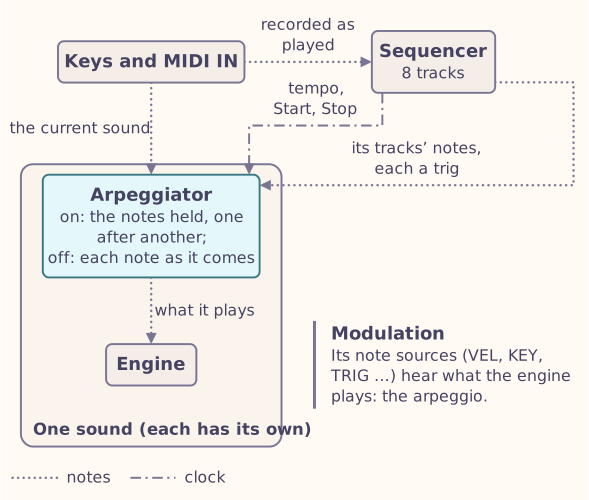
The arpeggiator remembers where each note came from: your hands (the keys and MIDI) or the sequencer. While it latches, the two latch apart. A new chord of yours replaces the chord you latched, and a new note from the sequencer replaces the sequencer’s; the arpeggiator plays both together.
4.8.1 The ARP pages
Turn SELECT for the page. KNOB1 to KNOB4 set the four values on it, and ALGORITHM steps through the stock FM-1’s arpeggio modes: Up, Down, Up/Down, Down/Up, Random and Played.
The line under the top bar says Arp on (rose), Arp latched (gold, the colour of what is held) or Arp off (grey), with the stock mode the settings make on the right, such as Up, when they make one. ALGORITHM shows the six modes as a list, and turning the knob of Mode, Rate, Pattern, Oct Mode or Repeat shows that value’s list (chapter 3).
| Page | KNOB1 | KNOB2 | KNOB3 | KNOB4 |
|---|---|---|---|---|
| 1 PLAY | Mode: the order of the notes | Rate: how long a step is, 1/32 triplet to a whole note, or TRG | Gate: how long each note sounds, 1 to 200 % of the step | Octaves: 1 to 4 |
| 2 RHYTHM | Pattern: every step, or one of 22 rhythms | Fill: the beats of a Euclidean rhythm | Rotate: where it starts | Length: the Euclidean rhythm’s steps; 0 uses Pattern |
| 3 CHANCE | Chance: how likely a step is to play | Ratchet: notes inside a step, 1 to 4 | Vel Spread: random velocity, up and down | Loop: after this many steps the chances repeat; 0 never |
| 4 FEEL | Oct Mode: how the octaves combine with the mode | Velocity: as played, or fixed | Join: keys added to a playing chord join now, or at the next pass | |
| 5 MORE | Order: notes sorted by pitch, as played, or reversed | Repeat: steps per note | Chord %: how likely a step is to play the whole chord | Oct Jump: how likely a note is an octave up |
| 6 KEYS | Latch | Sync: the first key restarts the pattern, or the pattern runs on | Ratchet %: how likely a step is to ratchet | Gate Sprd: random gate length |
| 7 SEED | Seed: which random choices the chances make |
The modes are Up, Down, Up-Down, Down-Up, Up&Down and Down&Up (which play the top and bottom notes twice), Converge and Diverge, Converge-Diverge (Conv-Div on the page), Thumb and Pinky (the lowest or highest note between the others), four modes that add octaves to some notes only, Crawl, Random, Shuffle (each note once per pass, in a new order), Walk (a random step to a neighbour) and Chord. The same Seed makes the same choices every time, so a random arpeggio repeats exactly.
TRG (Trigger in Rate’s list), at the left end of Rate, plays one step each time the sequencer starts notes on this sound (a trig), however far apart the trigs are. The keys alone do not step it. Its first note lasts until the next trig; after that, Gate is a share of the time between the last two.
4.8.2 With the sequencer
The arpeggiator follows the sequencer’s tempo whether the sequencer plays or not.
- On the beat. While the sequencer plays, the arpeggiator’s steps fall on the sequencer’s beat: at 1/16, on every sixteenth note of the bar, counted from PLAY/STOP. A key you press between two steps waits for the next one, and so does an arpeggiator you switch on in the middle of a bar. Triplet steps fall on the triplets of the beat, and the set’s swing delays every second step on the same grid. A dotted rate, such as 1/16D, finds the bar line again after a few bars (1/16D after three).
- Stopped. While the sequencer is stopped, the arpeggiator runs from its own steps at the sequencer’s tempo, and a first key starts it at once.
- Swing. The arpeggiator has no swing of its own: it swings with the set, by the Swing on the sequencer’s Set page (chapter 7), playing or stopped. A file saved before it followed the set loads as before; its old arpeggiator Swing value is kept in the file’s data but no longer does anything.
- PLAY/STOP restarts the pattern on the first beat.
- When the sequencer stops, it takes back what it gave the arpeggiator: its notes leave the chord, latched or not, and a note they were playing stops at once. The notes you play or latched by hand go on playing.
Sync, on the KEYS page, says what a first key, one played into an empty chord, does to the pattern’s place: where its rhythm, its Loop and its chances are. Either way the new chord’s notes start from the first.
| Sync | While the sequencer plays | While it is stopped |
|---|---|---|
| Key | The pattern starts again at the next step on the beat | The pattern starts again at once |
| Free | The pattern runs on from PLAY/STOP, and the key joins it at the next step on the beat, so a rhythm such as a Euclidean pattern stays on the bar. An arpeggiator switched on after PLAY/STOP keeps its own count of the pattern, which need not match the bar, until the next PLAY/STOP | The pattern runs on from its own last step, and the key waits for the next of them |
The arpeggiator does not use the project key, which the global page sets (chapter 10); it is there for the MIDI effects to come.
The sequencer records the notes you play, not the arpeggio. A part recorded with the arpeggiator on plays back through it again, so you can change the arpeggio afterwards, or switch it off and hear the notes as you played them.
The arpeggiator takes memory only while it is on. When the sounds and effects leave too little, ARP says does not fit and what the chain would need with it, such as needs 101% of RAM.
4.8.3 Acid Gen
Status:In the simulatorOn the desktopPlanned for the device
Acid Gen writes acid basslines: it is TB-3PO, the line generator of fm1-x0x, Charles Vestal’s firmware for the FM-1, after the TB_3PO applet of the Phazerville Hemisphere Suite (chapter 14). It takes the arpeggiator’s place: on the ARP pages, turn ALGORITHM past the stock modes to Acid Gen; turning back to a mode brings the arpeggiator back. ARP then switches Acid Gen on and off, and holding it latches, as for the arpeggiator. It is made for Acid Bass and plays any sound.
In builds with the GPL switch on
Acid Gen’s code is published under the GNU General Public License, so it is there only while the firmware’s GPL switch is on: in the simulator while we test (chapter 14).
- Hold a key and a line plays, sixteenths in A minor to begin with, starting from the key you hold: hold another key and the line moves there. Let go and it stops, unless Latch is on.
- Each line comes from a seed: the same Seed and settings always play the same line, so a song keeps it. Turn Seed for a new one. Mutations changes about a quarter of the steps, once for each step of the knob; Mut Every does that by itself every so many passes.
- Density sets how many steps play, Accent how many are accented, Slide how many slide into the next note.
- Accented notes are played at velocity 118, the others at 72, and a slide holds its note into the next one, so Acid Bass accents and slides them.
| Page | KNOB1 | KNOB2 | KNOB3 | KNOB4 |
|---|---|---|---|---|
| 1 LINE | Density | Accent | Slide | Octaves: how far the notes spread, 1 to 3 |
| 2 KEY | Root: the key, or Project to follow the project’s | Scale: Minor, Phrygian, Harm Minor, Min Pent, Dorian or Major, or Project | Octave: where the root sits | Keys: Transpose (hold a key to play) or Run (play while the sequencer plays) |
| 3 PLAY | Rate: 1/16, 1/16T, 1/32 or 1/8T | Length: 1 to 32 steps | Direction: Forward, Reverse, Ping-Pong or Random | Latch |
| 4 SEED | Seed | Mutations | Mut Every: passes between automatic mutations, or 0 |
With Keys at Run, the line plays from its first step when the sequencer starts and stops with it; a key you hold, or a note the sequencer plays on this sound, moves it to that note while it sounds.
4.8.4 In the desktop tools
--mfx K:arp puts the arpeggiator in front of sound K (0 is --engine),
and --mfx-param K:NAME=VALUE sets a value; a list’s value is its position,
from 0. --mfx-on-at K:T:0 switches it off at time T, and :1 on;
--mfx-param-at K:T:NAME=VALUE changes a value then. --log-mfx FILE
writes every note it plays (chapter 2).
--mfx K:acid-gen puts Acid Gen there instead, and --key ROOT:SCALE sets
the project key it follows (ROOT 0 for C to 11 for B, SCALE 0 major or
1 minor).